Settings
Every setting, what it does and its default.
On this page
Claude Code agentClaude accountsCopy setup from MainMachineStart and stopNotificationsCleanupDiagnosticsLogs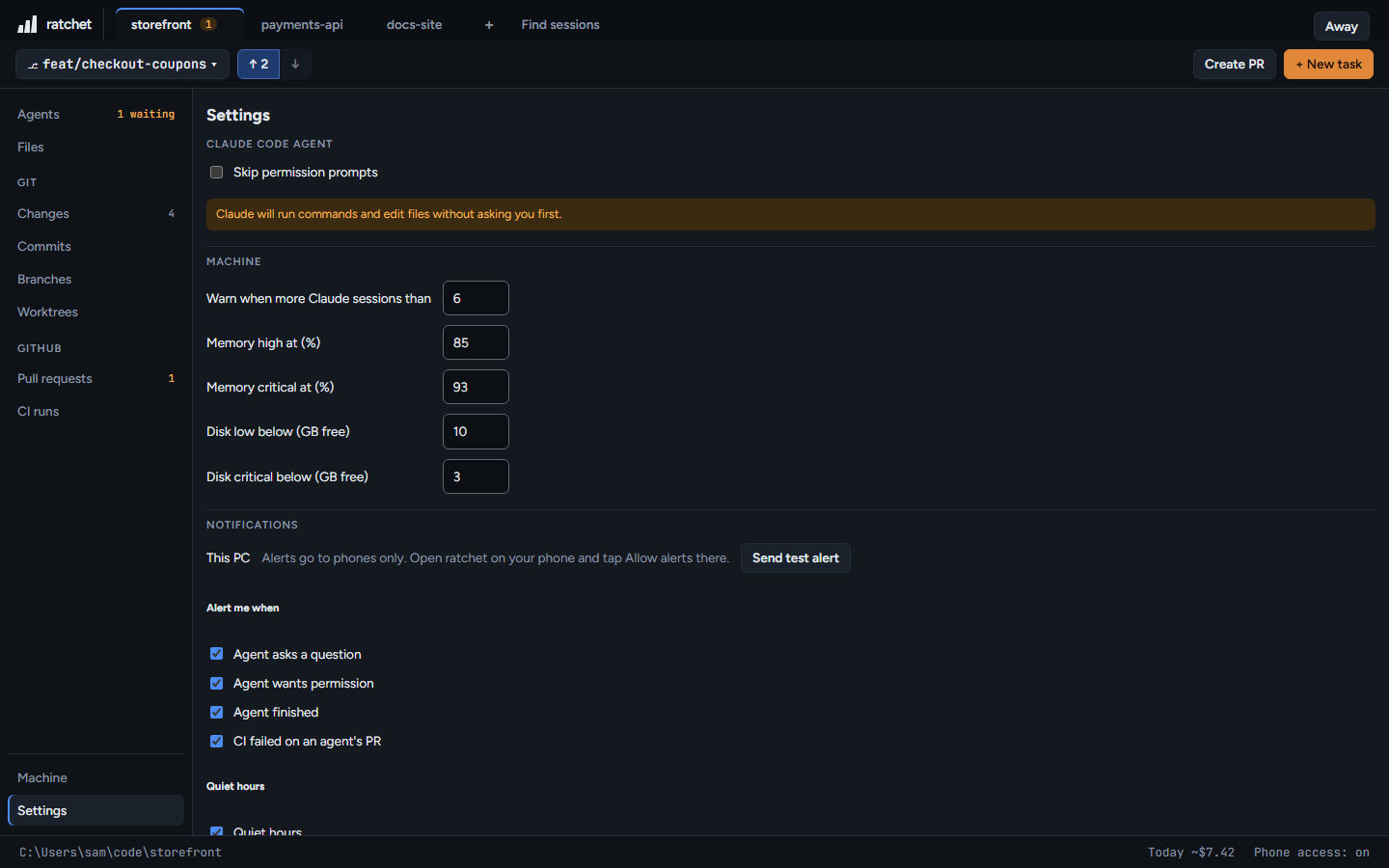
Number fields save when you press Enter or leave the field.
Opened through the relay in a wide window, Settings starts with Your PCs: this PC's name and Show your PCs, which lists the PCs you can switch to (see Several PCs on one phone). Plugin settings are on the Plugins page; open Plugins in Settings takes you there.
Claude Code agent
| Setting | Default | What it does |
|---|---|---|
| Skip permission prompts | Off | New agents run commands and edit files without asking first. |
Claude accounts
Run agents on a work plan and a personal plan. Each account signs in on Anthropic's own page; ratchet only reads when a sign-in ends. Every account is its own Claude Code folder, with its own sign-in, settings and conversations.
ratchet never stores, copies, logs or sends your Claude sign-in. To warn you before a sign-in ends, it reads one thing from Claude's sign-in file: the date it ends.
The account Claude Code uses today is Main: ~/.claude, or the folder in CLAUDE_CONFIG_DIR when you start ratchet with that set. Main is always first. You can rename it but not remove it. With only Main, nothing else in ratchet changes.
Each row shows the name, the email and plan (for example me@gmail.com · Pro), Signed in or Signed out, and the folder in small grey text. Checking… shows while ratchet asks Claude Code. Couldn't check means Claude Code did not answer within 10 seconds; the row still works.
Plan. Each row has a Plan choice, used only on the Usage page to compare your usage at API prices with what you pay. ratchet pre-selects the plan Claude reports, marked from Claude, and stores nothing until you pick. A phone shows the plan but can't change it.
Add an account.
- Press Add account and give it a name, for example Work (up to 24 characters). Leave Start with the same setup as Main on to give it Main's plugins, connected tools, skills and settings; see Copy setup from Main.
- Press Sign in with Claude. Your browser opens Claude's own sign-in page. Sign in there with the account you want to add.
- ratchet shows Signed in as you@company.com · Max, then copies Main's setup and says what went over, for example Copied Main's setup: 18 plugins, 7 connected tools, 96 skills, settings. Press Done, and the account is in the list.
- Browser didn't open? Press Open the sign-in page, or Copy link and open it yourself.
- Page shows your other account? Sign out on that page, or open the link in a private window.
- Got a code instead? Paste it into the box and press Continue. The code goes straight to Claude Code's own sign-in on this PC. ratchet does not save it, log it or send it anywhere.
- Signing in with an account that is already in the list shows That's the account you already have as Main (me@gmail.com). Sign in with a different account.
- Leaving the screen stops the sign-in; for a new account it also removes the folder ratchet made for it. One sign-in runs at a time on a PC, and one still open after 10 minutes stops by itself.
Accounts you already have. A second Claude Code folder in your home folder, such as ~/.claude-work or ~/.claude2, shows under Found on this PC. Press Add and give it a name; no new sign-in is needed. Hide stops ratchet offering it. For a folder somewhere else, press Add an account folder by hand and type its path. Two folders signed in to the same Claude account show Same Claude account as Main; each still keeps its own conversations.
The ⋯ menu on each row.
- Rename changes the name only. The folder stays where it is.
- Sign in again shows when the account is signed out or its sign-in ends within three days, and runs the same browser sign-in for that folder.
- Copy setup from Main… copies Main's setup into that account after a preview; see Copy setup from Main. Main's own row does not have it.
- Copy terminal command copies the line that starts Claude Code on that account in your own terminal, for example
$env:CLAUDE_CONFIG_DIR="C:\Users\sam\.claude-work"; claudein PowerShell orCLAUDE_CONFIG_DIR="$HOME/.claude-work" claudein bash or zsh. - Remove takes the account out of ratchet. Its conversations stay in its folder, its agents leave ratchet's lists, and repos that used it go back to Main. A folder ratchet made is signed out on this PC; a folder you added yourself stays signed in for your own terminal use. ratchet deletes no files.
When a sign-in ends. A Claude sign-in lasts a few weeks. Three days before it ends, the account's row shows Sign-in ends in 3 days, then Sign-in ends tomorrow and Sign-in ends today, with a Sign in again button, and ratchet alerts you: Work sign-in ends in 3 days. Sign in again in Settings → Claude accounts. Once it has ended, the row shows Signed out and the alert reads Work is signed out. Agents on Work can't start until you sign in again. The ending alert comes once for each sign-in, and the signed-out alert once each time an account signs out. Turn them off with Claude sign-in ending or ended under Notifications.
Sign in again. On your PC, Sign in again opens Claude's sign-in page in your browser; sign in there with that account. From the phone, the same button walks you through the phone sign-in: see Add a Claude account from the phone. One sign-in runs at a time on a PC; while one is open, the buttons say A sign-in is already open on your PC.
On a Mac, ratchet can't see when a sign-in ends, so the warning comes only once the account is signed out.
A new account can start with Main's setup: see Copy setup from Main below. Sign-in settings never go over, so each account always uses its own plan. On a Mac, two accounts need Claude Code 2.1.56 or newer; with an older version, adding and signing in stay switched off until you update. Running several sessions on one account at the same time can still sign each other out now and then; that is a Claude Code issue that happens without ratchet too.
Pick the account when you start an agent: see New task. On the phone you can add an account and sign in again. Rename, remove and adding a folder by hand stay on your PC. You can also pick an account for a task and choose a repo's account there.
Copy setup from Main
A new account can start with the setup you built up on Main. When you add an account, Start with the same setup as Main is on, and ratchet copies right after the sign-in: plugins, connected tools, skills, agents, commands, output styles, settings, your instructions (CLAUDE.md) and keyboard shortcuts. Turn it off to start the account bare.
For an account you already have, press Copy setup from Main… in its ⋯ menu. A preview shows what the copy Adds (what the account lacks) and Updates (what differs from Main), for example Skills: deploy, jira-story and 3 more. Press Copy. The account keeps everything it has that Main doesn't, and agents running on it pick up the change when they start again. When nothing differs, it says Work already has everything from Main.
- A copy never removes anything. Undo it by hand in the account's folder.
- A connected tool's own key goes over with the tool, stays on this PC and is never shown or sent.
- Tools that sign in on their own may ask you to sign in to them again in the new account.
- If something can't be copied, ratchet names it, for example Couldn't copy: deploy and 2 more. Press Try again. The account stays signed in and works.
Machine
Warning levels for Machine, which is Windows only for now.
| Setting | Default | What it does |
|---|---|---|
| Warn when more Claude sessions than | 6 | Sessions tile turns high. |
| Memory high at (%) | 85 | Memory tile turns high. |
| Memory critical at (%) | 93 | Must be above high. |
| Disk low below (GB free) | 10 | Disk tile turns high. |
| Disk critical below (GB free) | 3 | Must be below low. |
Start and stop
Shown only in ratchet on your PC, not on the phone.
| Setting | Default | What it does |
|---|---|---|
| Start ratchet when I sign in | Off | ratchet starts in the background when you sign in to this PC: no window, no browser tab. Your phone can reach it straight away. Windows and macOS, not Linux yet, when ratchet is installed with npm install -g @ratchet-ai/ratchet. |
| Show ratchet in the Start menu and on the Desktop | On (Windows) | Adds a ratchet icon to the Start menu and the Desktop that starts ratchet with no command window. Turn it off to remove them. Only for ratchet installed with npm install -g. |
| Stop ratchet | Button | Stops ratchet and every agent on this PC. If agents are running, ratchet asks first. To start it again, type ratchet in a terminal, or npx @ratchet-ai/ratchet if you started it with npx. |
Notifications
| Setting | Default | What it does |
|---|---|---|
| This PC | Off | On the PC, Allow alerts turns alerts on for this browser, and Turn off turns them off again. |
| Allow alerts / Send test alert | Buttons | On a phone, turns alerts on for it. Send test alert sends one to every PC browser and phone getting alerts. |
| Alert me when | All on | Agent asks a question, Agent wants permission, Agent finished, CI failed on an agent's PR, Plugin alerts, A new ratchet version is out, Claude sign-in ending or ended, and in ratchet on the PC only, The Team notice is new or changed, A teammate works on the same files. |
| Quiet hours | Off, 22:00–07:00 | No alerts in this window. |
| Away during quiet hours | Off | Turns Away on for quiet hours. |
| Repos | All | Which repos can send alerts. |
| Getting alerts | List | Every phone and PC browser that gets alerts, with Remove. A PC browser shows as, for example, Edge on this PC. |
Claude sign-in ending or ended alerts you three days before an account's sign-in ends, and again once it has ended.
Cleanup
ratchet tidies up once an hour while it runs.
| Setting | Default | What it does |
|---|---|---|
| Forget finished agents after (days) | 30 | Removes old agents from ratchet's own list. |
| Delete saved PR file groups after (days) | 30 | Clears the stored file groups for old PRs. |
Diagnostics
| Setting | Default | What it does |
|---|---|---|
| Send usage statistics | Off until you say yes | The first time you start ratchet, it asks whether to send anonymous usage statistics (screens, buttons, agent runs, rough location) to the ratchet team through PostHog in Frankfurt. Never your code, files, prompts or terminal text. Change your answer here at any time; turning it on counts as yes. With DO_NOT_TRACK or RATCHET_NO_USAGE set, nothing is sent. See Privacy and data. |
| Install ID | Shown, with Copy | The random ID your usage statistics are counted under. Copy it to ask for your data to be deleted. |
| Send crash reports | Off | When ratchet hits an error, it sends the error and your ratchet version to the ratchet team. Never your code, prompts or files. Setting RATCHET_NO_CRASH_REPORTS=1 on this PC keeps it off; the switch then says so. See Privacy and data. |
| Questions, problems or ideas? | Link | Opens a new email to hello@ratchet.build in your email program. If you have a problem, paste the diagnostics text into it. See Report a problem. |
| Copy diagnostics | Button | Shows one block of text, ready to read: the ratchet and Claude Code versions, the log folder, your install ID, whether usage statistics are on and when they were last sent, whether phone access, Away mode and each plugin are on, and the last 300 log lines. Copy it with Copy to clipboard, or use Save as file; Close hides it. It stays on your PC until you share it. Use it when you report a problem. |
| Send report | Button | Opens Send report: write one line about what went wrong, add your email if you'd like an answer, and see every file that will go with its size. Read any of them and leave out a day, then press Send. It sends your log of the last 7 days and the diagnostics to the ratchet team, with secrets and your home folder hidden. Nothing is sent until you press Send. Works from the phone too: it sends its PC's report. See Privacy and data. |
| Open log folder | Button | Shows next to Copy to clipboard once you press Copy diagnostics, and opens the folder with ratchet's log files. Only on the PC itself on Windows and macOS, not from the phone. |
The first time you start ratchet, a bar at the top asks Share anonymous usage counts to help improve ratchet? with No and Yes. It shows on every start until you answer; × counts as No. On a later start, a card asks Help fix ratchet? Send crash reports automatically. When DO_NOT_TRACK or RATCHET_NO_USAGE keeps the usage question away, the card shows on the first start. Either answer hides the card for good. The Send crash reports switch is how you change your answer later. With RATCHET_NO_CRASH_REPORTS=1 set on this PC, the card never shows.
Logs
Press Open logs to read ratchet's log of the last 7 days, on the PC or on your phone. The newest lines are at the top, and while you look at today, new ones appear as they are written. ← Settings takes you back; opened from Send report, the link reads ← Send report.
- Pick a day, or All days to read all 7 at once. When midnight passes while you read, A new day started · Show today takes you to the new day.
- Show only Warnings and errors to find what went wrong.
- Search the log for a word, such as a repo, a branch or an error, up to 200 characters.
- Tap a line's tag to see every step of that agent, request or update, newest first. ✕ Show all lines goes back to the full list.
- Copy copies the lines in the list, ready to paste into a report. Open log folder opens the folder on the PC itself (Windows and macOS).
The list shows the newest 2,000 lines. To reach older ones, search, filter or tap a tag. ratchet keeps 7 days of log, and a day's file stops at 10 MB. See Where the log is and what the log holds.